Test environment and hardware
| Item | Tested configuration |
| Test date | 2026-10-02 |
| Operating system | Ubuntu 24.04.5 LTS, amd64 |
| Test hosts | 1 fresh isolated VM(s); resources below are per VM |
| CPU | 2 vCPU (x86-64-v2-AES) |
| Memory | 4 GiB |
| System disk | 32 GiB, HDD-backed, VirtIO, ext4 |
| Virtualization | Proxmox VE 9.2.18 |
| PostgreSQL | 16.15, native Ubuntu packages |
The commands were executed on a newly created Ubuntu VM. These are the tested resources, not minimum requirements. Small sample data verifies functionality; this is not a benchmark or a large-workload test.
On this page
Verified: native installation, interactive password login, application permissions, SQL reads and writes, backup, and restoration to another database on the same host. The service and data also survived a reboot.
This guide starts with an Ubuntu 24.04 host without PostgreSQL. Install PostgreSQL 16 using APT, manage it with systemd, create an application role, test SQL access, and perform an isolated restore.
The deployment is native, without Docker. Connections remain local, suitable for learning SQL or an application on the same host.
Screenshots contain actual PTY output, with the prompt normalized to lab$ to remove internal host identifiers. echo $? returning 0 means the preceding command succeeded. This English edition preserves tested commands and original captures; some sample strings and screenshot footers remain in Traditional Chinese.
Before you start: check the OS and package versions
Use Ubuntu 24.04 LTS and a regular account with sudo. Ubuntu 24.04 defaults to PostgreSQL major version 16; the package names below explicitly select that version. Minor releases change with repository updates, so check the actual candidate version.
cat /etc/os-release
sudo apt update
apt-cache policy postgresql-16 postgresql-client-16
Confirm Ubuntu 24.04, codename noble, and sources that meet your package policy. For an internal mirror, verify that it publishes Noble packages. This tutorial does not require replacing an approved repository.
Service names, paths, and port 5432 below assume a fresh 16/main cluster. On an existing server, inspect pg_lsclusters first and adapt to its version, cluster name, and port.
1. Install the server and command-line tools
sudo apt install postgresql-16 postgresql-client-16
pg_lsclusters
psql --version
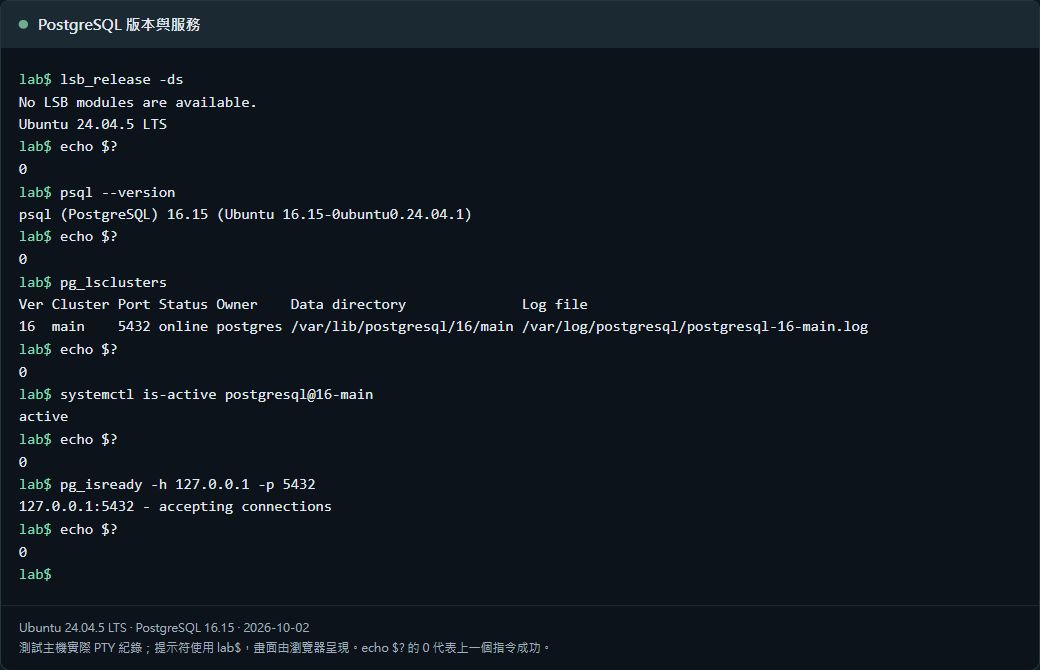
postgresql-16 provides the server; postgresql-client-16 includes psql, pg_dump, and pg_restore. A normal fresh installation creates the main cluster. Verify version 16, cluster main, port 5432, and status. If the cluster is missing, inspect installation logs instead of initializing over existing data.
2. Check the actual database service
sudo systemctl enable postgresql
sudo systemctl start postgresql@16-main
systemctl status postgresql@16-main --no-pager
pg_isready -h 127.0.0.1 -p 5432
sudo -u postgres psql -d postgres -c "SELECT version();"
Expect active (running) for the cluster and accepting connections from the connection check. SQL reports the server version; psql --version reports only the client version.
Ubuntu’s umbrella postgresql.service may show active (exited). That alone proves neither failure nor database availability. Check postgresql@16-main, pg_lsclusters, and an actual SQL connection.
3. Create an application role and database
Installation creates the Linux postgres account and PostgreSQL postgres administrator role. Local peer authentication lets the Linux postgres user administer the database without first setting an administrator password; peer checks the operating-system identity.
sudo -u postgres psql -d postgresRun the following inside psql. The example role is app_user and the database is appdb. Choose names for your application; both names must be unused.
CREATE ROLE app_user WITH LOGIN NOSUPERUSER NOCREATEDB NOCREATEROLE NOREPLICATION;
\password app_user
CREATE DATABASE appdb OWNER app_user;
\q
\password prompts twice without showing the password. Keep real passwords out of SQL literals and command arguments. The role owns appdb but has no superuser, database-creation, role-creation, or replication privileges.
4. Test application login and SQL reads and writes
Exit the administrator psql session and use local TCP from your normal terminal to test password authentication:
psql -h 127.0.0.1 -p 5432 -U app_user -d appdb -W-h selects the host, -U the role, -d the database, and -W an interactive password prompt. Ubuntu’s default local TCP authentication uses SCRAM-SHA-256; Unix sockets commonly use peer. They are different authentication paths.
After logging in, create a table dedicated to this exercise:
SELECT current_database(), current_user;

CREATE TABLE public.install_check (
    id bigint GENERATED ALWAYS AS IDENTITY PRIMARY KEY,
    note text NOT NULL,
    created_at timestamptz NOT NULL DEFAULT now()
);

INSERT INTO public.install_check (note)
VALUES ('PostgreSQL 安裝完成');

SELECT id, note FROM public.install_check;
\q
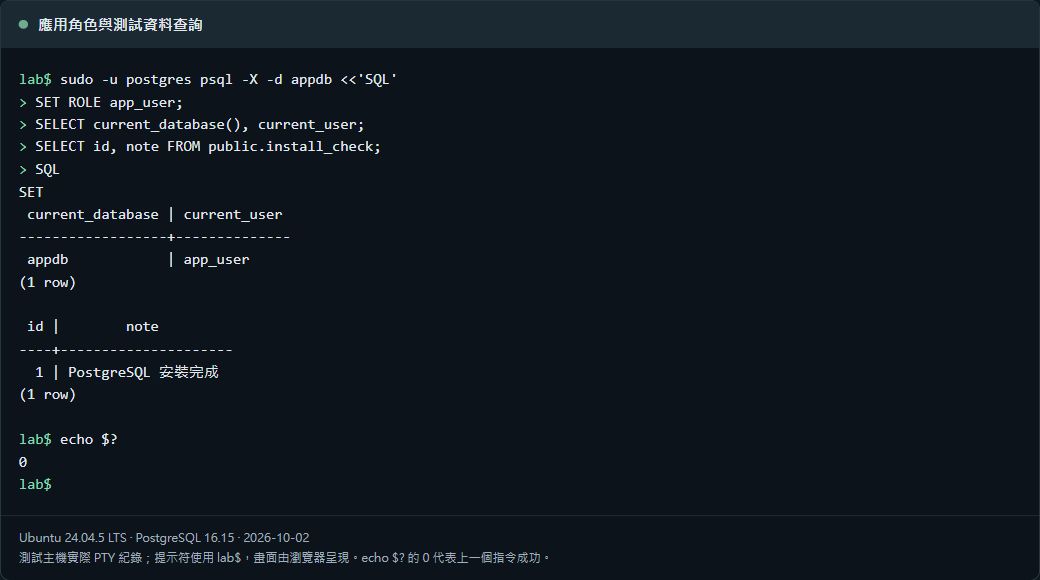
Expect database appdb, role app_user, and the inserted sample row. This verifies connection, password authentication, table creation, writing, and reading. Do not rerun the CREATE TABLE statement against an existing install_check table.
5. Locate the real configuration and data directory
sudo -u postgres psql -d postgres -c "SHOW config_file;"
sudo -u postgres psql -d postgres -c "SHOW hba_file;"
sudo -u postgres psql -d postgres -c "SHOW data_directory;"
sudo -u postgres psql -d postgres -c "SHOW listen_addresses;"
Ubuntu’s usual 16/main configuration directory is /etc/postgresql/16/main/ and data directory is /var/lib/postgresql/16/main. Use the SHOW results as authority. postgresql.conf controls server settings; pg_hba.conf controls connection authentication.
Keep local-only connectivity for this exercise. It does not change listen_addresses or expose port 5432 publicly. A later remote application needs a separate source-restriction, TLS, and network-access plan.
6. Back up and restore to another database
Run this from a directory writable by your regular account. Save appdb in custom format; umask 077 restricts new backup files to the current account.
umask 077
backup_file="$PWD/appdb-$(date +%Y%m%d-%H%M%S).dump"
sudo -u postgres pg_dump -d appdb -Fc > "$backup_file"
pg_restore --list "$backup_file"
pg_restore --list checks that the archive directory is readable; it does not prove restoration. Create the separate, previously nonexistent appdb_restore, restore it, and query the sample data.
sudo -u postgres createdb --owner=app_user appdb_restore

sudo -u postgres pg_restore \
  --exit-on-error \
  --no-owner \
  --role=app_user \
  --dbname=appdb_restore < "$backup_file"

sudo -u postgres psql -d appdb_restore \
  -c "SELECT id, note FROM public.install_check;"
The original appdb stays intact. --role=app_user creates restored objects as the application role; --no-owner skips ownership statements from the archive. Verify the restored query result, then keep an independent copy. Restrict access during backup storage and transfer.
A single-database pg_dump does not include cluster-wide roles. This restore reuses the existing app_user role. Moving to a fresh server also requires roles, permissions, and compatible extensions and settings.
Three common connection problems
Peer authentication failed
Omitting -h commonly selects a Unix socket, where peer rejects a mismatch between Linux and database identities. Use sudo -u postgres psql for local administration and explicit -h 127.0.0.1 for an application password test. Do not change authentication to trust as a general fix.
Password authentication failed
Check the role, database, and port first. To reset an application password, use \password app_user in an administrator session. Inspect the actual pg_hba.conf if its rules have changed.
Connection refused
Usually no service is listening at the requested address and port. Check the cluster and port, then inspect its service log:
pg_lsclusters
sudo journalctl -u postgresql@16-main -n 50 --no-pager
You now have a PostgreSQL installation tested with application reads and writes and a separate restore. Next, establish scheduled backups, capacity monitoring, and updates. Major-version upgrades need their own compatibility and restoration plan.