Test environment and hardware
| Item | Tested configuration |
| Test date | 2026-10-02 |
| Operating system | Ubuntu 24.04.5 LTS, amd64 |
| Test hosts | 1 fresh isolated VM(s); resources below are per VM |
| CPU | 2 vCPU |
| Memory | 4 GiB |
| System disk | 32 GiB, HDD-backed, VirtIO, ext4 |
| Linux kernel | 6.8.0-139-generic |
| systemd | 255.4-1ubuntu8.17 |
Run a script with systemd under a dedicated account and limited writable paths, then schedule it with a timer. Verify success, an intentional exit-code-7 failure, repair, and reboot persistence.
On this page
This tutorial was tested on fresh, isolated Ubuntu 24.04 virtual machines with synthetic data. Packages came from signature-verified sources for Noble. No production database or website credentials were used. Check the sources and versions appropriate for your own environment.
The screenshots show actual bash PTY output from the test machines, rendered in a browser terminal view. The prompt is normalized to lab$; results were not rewritten. This English edition preserves the tested commands and original images. Some code comments, sample strings, and screenshot footers remain in Traditional Chinese. Copyable commands are provided separately.
1. Create a dedicated account and directories
sudo useradd --system --home /var/lib/demo --shell /usr/sbin/nologin demo
sudo install -d -o demo -g demo -m 0750 /opt/demo /var/lib/demo
sudo tee /opt/demo/tick.sh >/dev/null <<'EOF'
#!/bin/sh
set -eu
date -u +%FT%TZ >> /var/lib/demo/runs.log
echo "demo tick completed"
EOF
sudo chown root:root /opt/demo/tick.sh
sudo chmod 0755 /opt/demo/tick.sh
The account has no interactive shell. Root manages the script; output goes to a dedicated data directory. Each run writes one timestamp. It exposes no network service or secret.
2. Use a oneshot service with necessary writable paths
# /etc/systemd/system/demo.service
[Unit]
Description=Tutorial oneshot task

[Service]
Type=oneshot
User=demo
Group=demo
ExecStart=/opt/demo/tick.sh
NoNewPrivileges=true
ProtectSystem=strict
ProtectHome=true
PrivateTmp=true
ReadWritePaths=/var/lib/demo
Type=oneshot suits a task that exits after finishing. Without RemainAfterExit, inactive after success is normal. Check Result=success and ExecMainStatus=0, not only active state.
3. Create the daily timer
# /etc/systemd/system/demo.timer
[Unit]
Description=Tutorial timer

[Timer]
OnCalendar=*-*-* 03:30:00
Persistent=true
Unit=demo.service

[Install]
WantedBy=timers.target
sudo systemd-analyze verify /etc/systemd/system/demo.service /etc/systemd/system/demo.timer
sudo systemctl daemon-reload
sudo systemctl enable --now demo.timer
sudo systemctl start demo.service
systemctl show demo.service -p Result -p ExecMainStatus
systemctl is-enabled demo.timer
sudo journalctl -u demo.service -n 5 --no-pager -o cat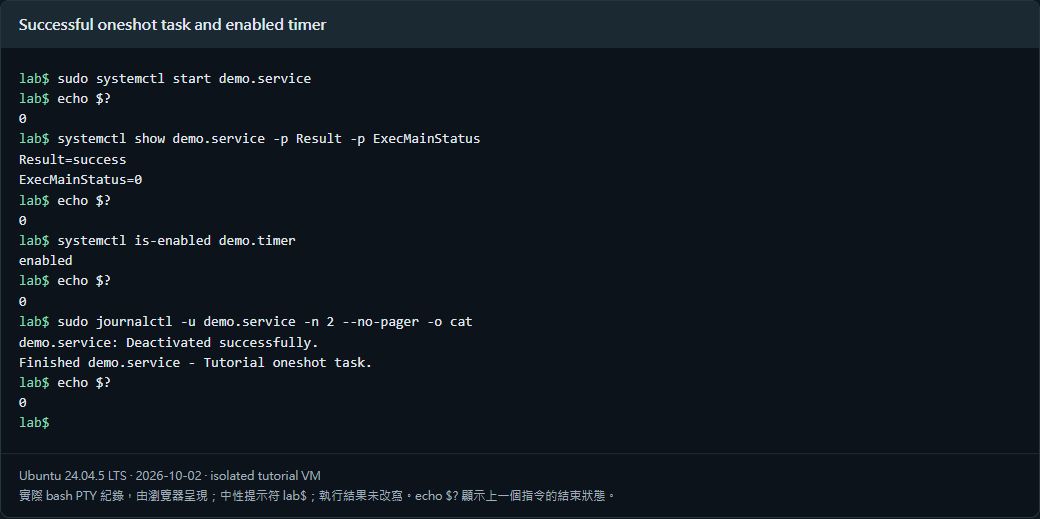
Calendar time follows the host timezone: Asia/Taipei in this VM, while the script records UTC. Persistent=true can catch up a qualifying missed calendar activation when the timer starts again. It does not implement retries or guarantee each job succeeds.
4. Observe an actual short timer trigger
sudo systemd-run --unit=demo-trigger-verified --on-active=3s \
  --timer-property=AccuracySec=1ms /usr/bin/systemctl start demo.service
sudo tail /var/lib/demo/runs.log
A new written timestamp proved the timer actually called the service. AccuracySec=1ms is used for the short test to avoid default wake-up coalescing obscuring the result. The daily timer retains ordinary settings. Success was recorded only after observing the new output.
5. Reproduce failure and inspect the exit code
sudo tee /opt/demo/fail.sh >/dev/null <<'EOF'
#!/bin/sh
exit 7
EOF
sudo chmod 0755 /opt/demo/fail.sh
sudo tee /etc/systemd/system/demo-fail.service >/dev/null <<'EOF'
[Service]
Type=oneshot
User=demo
ExecStart=/opt/demo/fail.sh
EOF
sudo systemctl daemon-reload
sudo systemctl start demo-fail.service
systemctl show demo-fail.service -p Result -p ExecMainStatus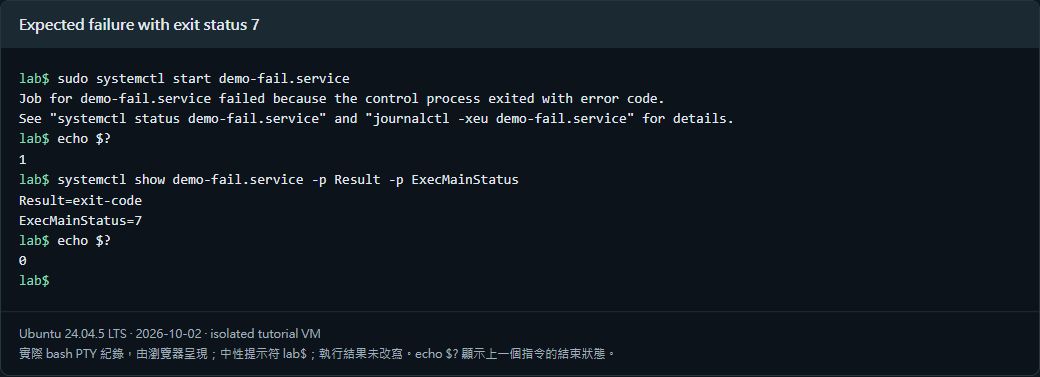
The failed service start is intentional. ExecMainStatus=7 matches the script’s exit code. Repair the script, reset the failed state, and rerun:
sudo tee /opt/demo/fail.sh >/dev/null <<'EOF'
#!/bin/sh
echo "repaired task completed"
EOF
sudo chmod 0755 /opt/demo/fail.sh
sudo systemctl reset-failed demo-fail.service
sudo systemctl start demo-fail.service
systemctl show demo-fail.service -p Result -p ExecMainStatus
6. Check behavior after reboot
systemctl is-enabled demo.timer
systemctl is-active demo.timer
systemctl list-timers demo.timer --no-pager
sudo systemctl start demo.service
systemctl show demo.service -p Result -p ExecMainStatus
After reboot, the timer was active and the task still ran. Add production failure notifications, retry policies, and data backups as needed. Logs containing credentials or business data must remain private.
Verified results
| Verification | Result |
| Dedicated-account oneshot succeeded | Passed |
| Timer configuration and enablement passed | Passed |
| Three-second timer produced a new output record | Passed |
| Exit-code-7 failure reproduced | Passed |
| Repair returned exit code 0 | Passed |
| Timer healthy after reboot | Passed |
Scope: a real accelerated three-second trigger, calendar configuration, and boot enablement. The test did not wait until the next day’s 03:30 schedule or measure long-term punctuality, external notifications, or resistance to attacks on every sandbox option.
Official references
github.com/systemd/systemd/blob/v255/man/systemd.service.xml · github.com/systemd/systemd/blob/v255/man/systemd.timer.xml